Backup |
  
|
Backup |
|
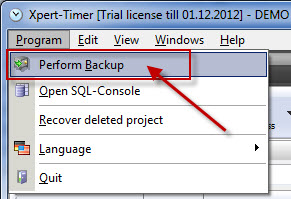
In order to perform a backup of your Xpert-Timer database, point to Program -> Perform Backup. Please note, that this menu point is only available in Single User versions, using SQLite or Access as the database.
All settings for creating your backup can be found in the configuration of Xpert-Timer -> System -> Backup.
Make sure you backup your system regularly. Hit the button "Start backup". If you want to view the backup, just click "View backup" and you'll automatically be directed to the directory where the backup was saved.
In order to restore the backup, you need to find the newest backupfile on your system. It's usually named "xt_date+time+.mdb". Copy the file with the newest date and paste it into the "Database" folder in your Xpert-Timer installation directory. Rename the file to "xt.mdb" and you are ready to go again.
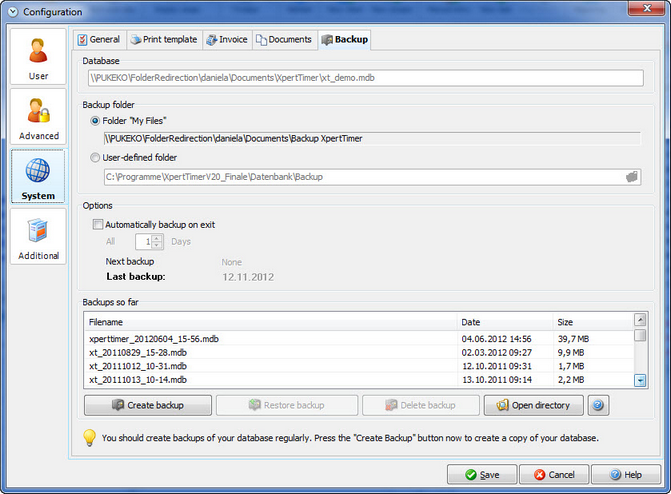
Database |
This is the path to your currently used database. |
Backup folder |
If you own a single user version, please save your database in your "My folder" folder. Choose any folder if you work in a network. You might use a network directory. If you own a U3 memory stick version at foreign computers, make sure you backup on your U3 stick. Preferably in your "Documents" folder. If you fail to do so, it might happen, that you backup your database onto the foreign computer, which should not happen. |
Options |
You can automate your backups if you shut down the Xpert-Timer. Just check the box for "Automatic backup at shut down" |